 |
Cockatrice 2026-10-19-Development-3.1.2-beta.2
A virtual tabletop for multiplayer card games
|
|
Cockatrice 2026-10-19-Development-3.1.2-beta.2
A virtual tabletop for multiplayer card games
|
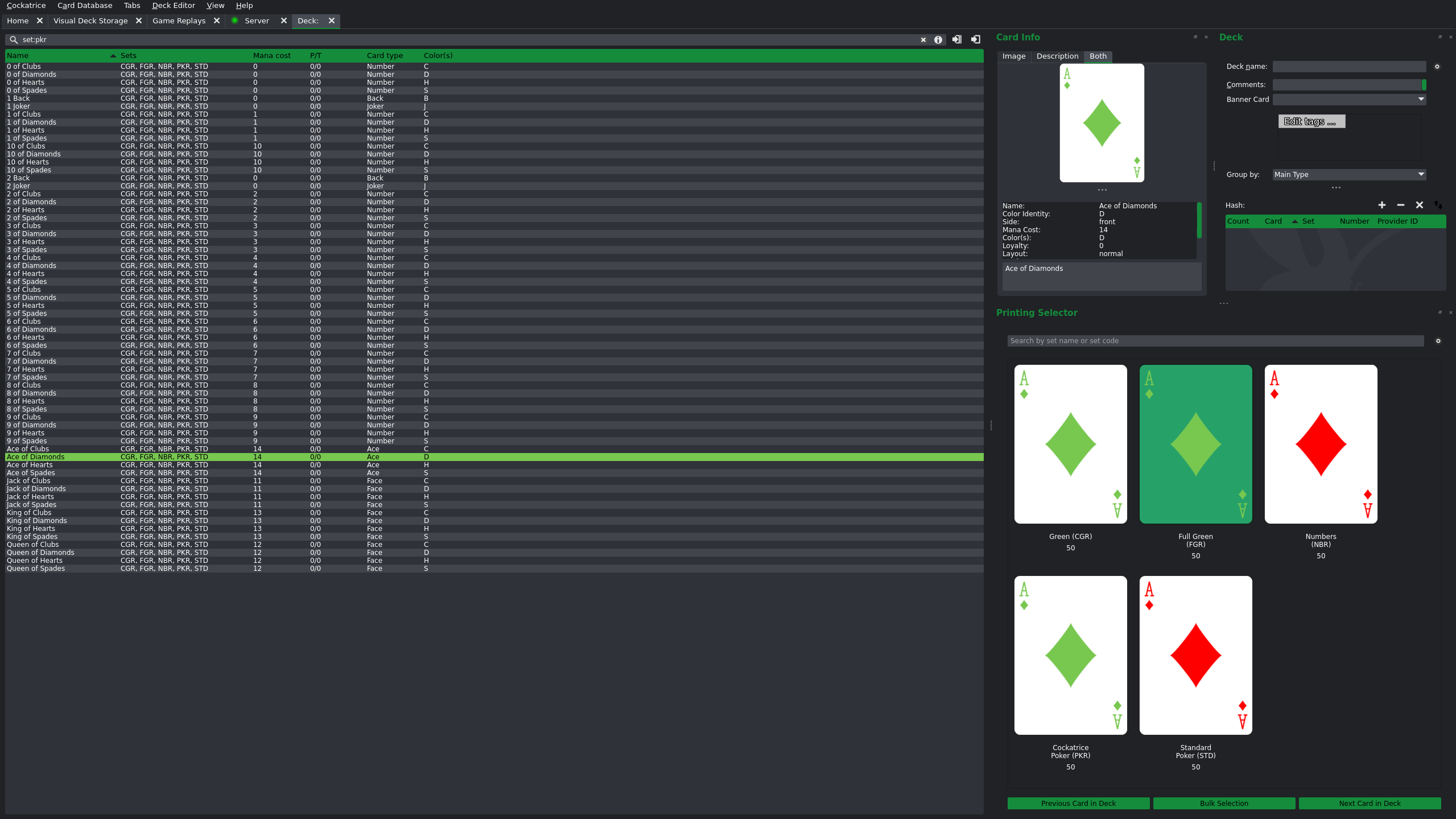
Editing basic deck information is done through the deck dock widget (DeckEditorDeckDockWidget).
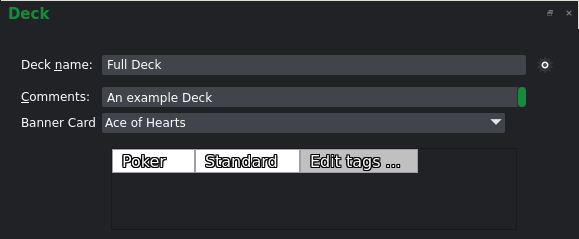
This widget allows editing:
Adding cards is done using the list of cards in the database presented in the list view on the left.
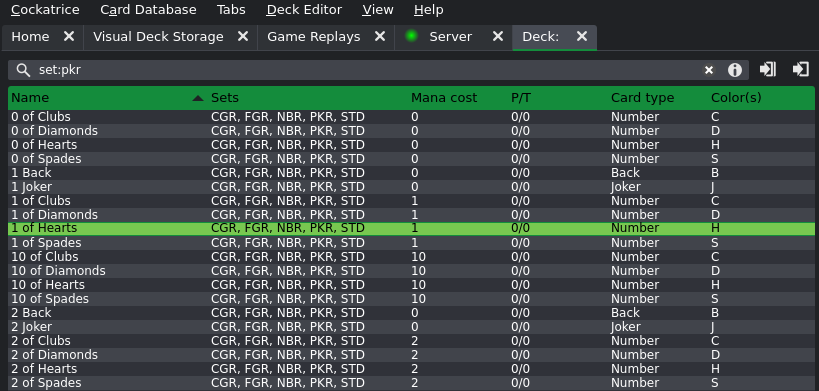
Cards can be added by either double-clicking an entry, pressing return with an entry selected to add it to the mainboard or pressing ctrl/cmd + return to add it to the sideboard.
There are also buttons for these two functions on the right of the search bar above the list view.

To modify or remove cards in the deck list, the tree list view in the deck dock widget can be used.
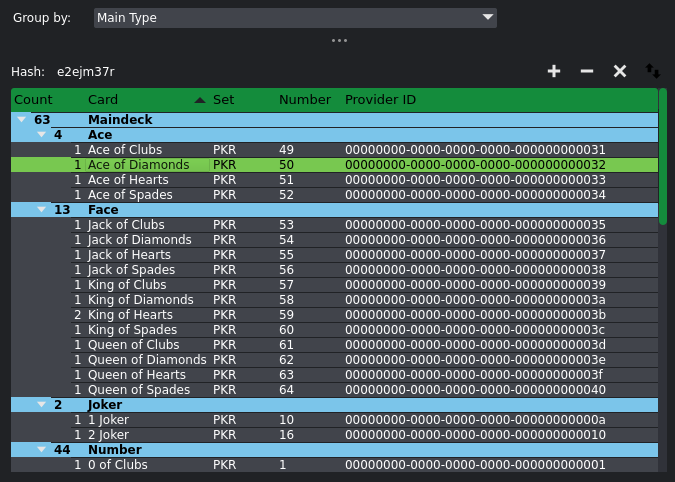
Just above the list, at the top right, there are four buttons to manipulate the currently selected card(s):

Additionally, there is a combo box above the list, which may be used to change how cards are grouped in the list display. This is only for visual display and does not affect how the list is saved.

For more information on modifying the printings in a deck see Printing Selector
 1.18.0