 |
Cockatrice 2026-10-19-Development-3.1.2-beta.2
A virtual tabletop for multiplayer card games
|
|
Cockatrice 2026-10-19-Development-3.1.2-beta.2
A virtual tabletop for multiplayer card games
|
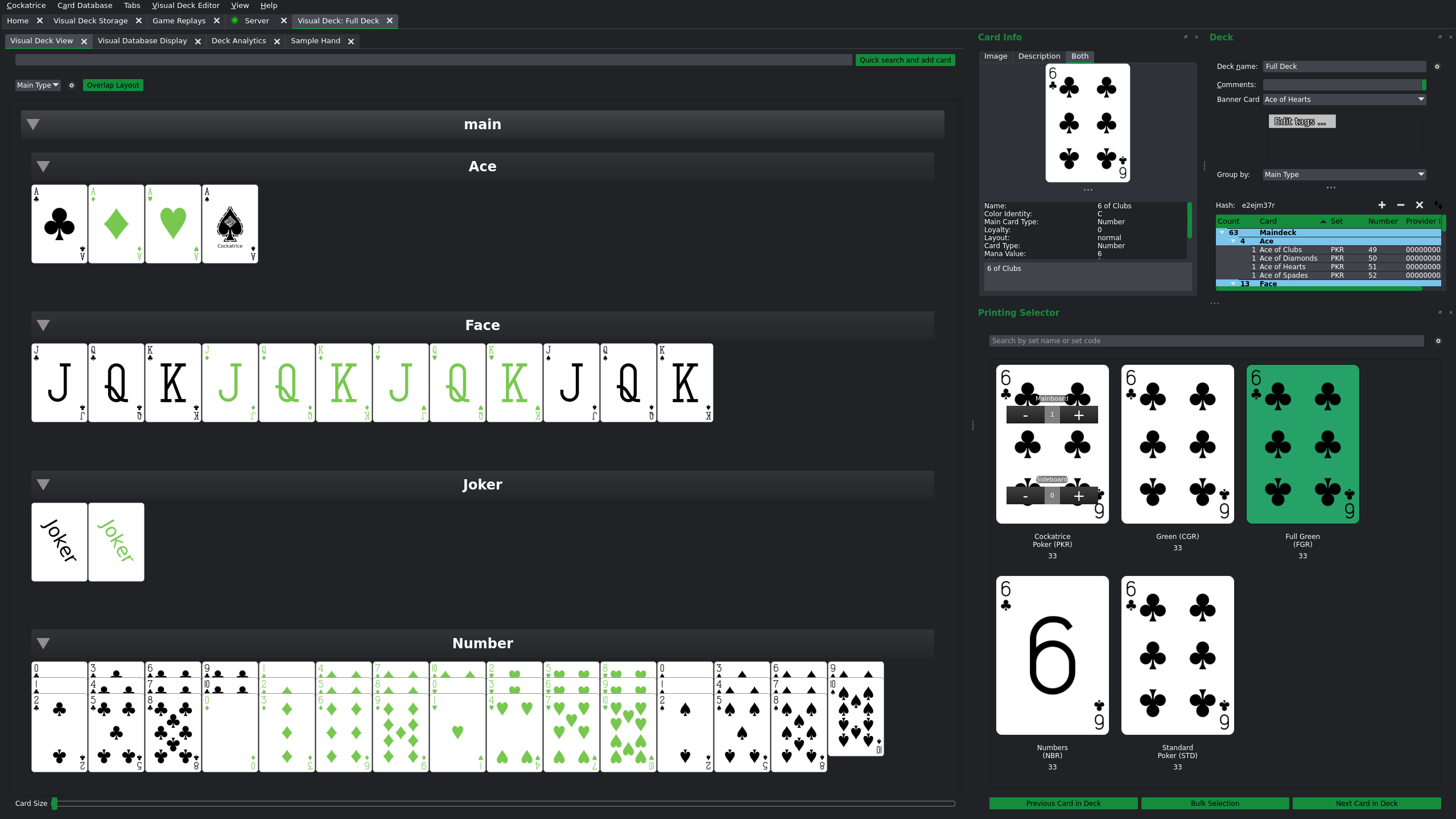
Editing basic deck information is done through the deck dock widget (DeckEditorDeckDockWidget).
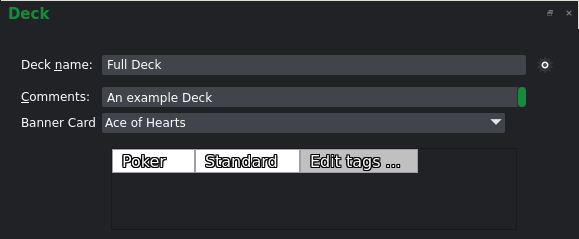
This widget allows editing:
Adding cards is done by either using the "Quick search and add card" search bar at the top of the "Visual Deck View" tab or by clicking on a picture of a card in the "Visual Database Display" tab.
See visual_database_display for more information on how to utilize the visual database display.
To modify or remove cards in the deck list, the tree list view in the deck dock widget can be used.
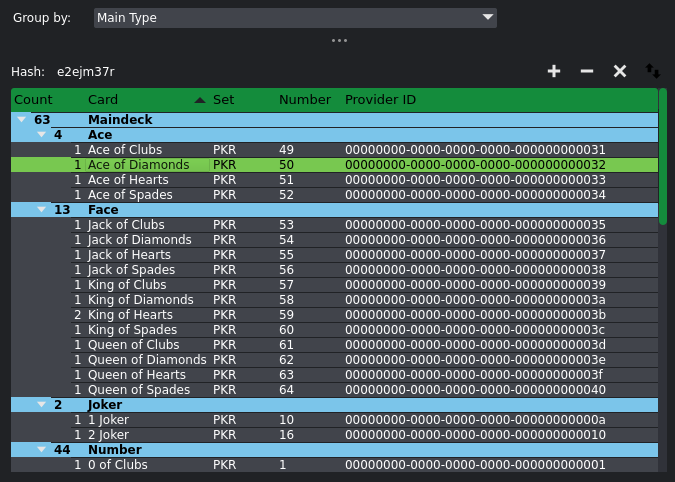
Just above the list, at the top right, there are four buttons to manipulate the currently selected card(s):

Additionally, there is a combo box above the list, which may be used to change how cards are grouped in the list display. This is only for visual display and does not affect how the list is saved.

The visual deck editor displays cards visually, as opposed to simply in list form in the Deck Dock Widget. Each entry in the deck list is represented by a picture. These entries are grouped together under their respective sub-groups. Sub-groups may be collapsed (i.e. the pictures contained within them are hidden) by clicking on the name of the group in the banner.
Cards may be displayed in a "Flat" layout, which displays each picture next to each other and ensures full visibility for each card.
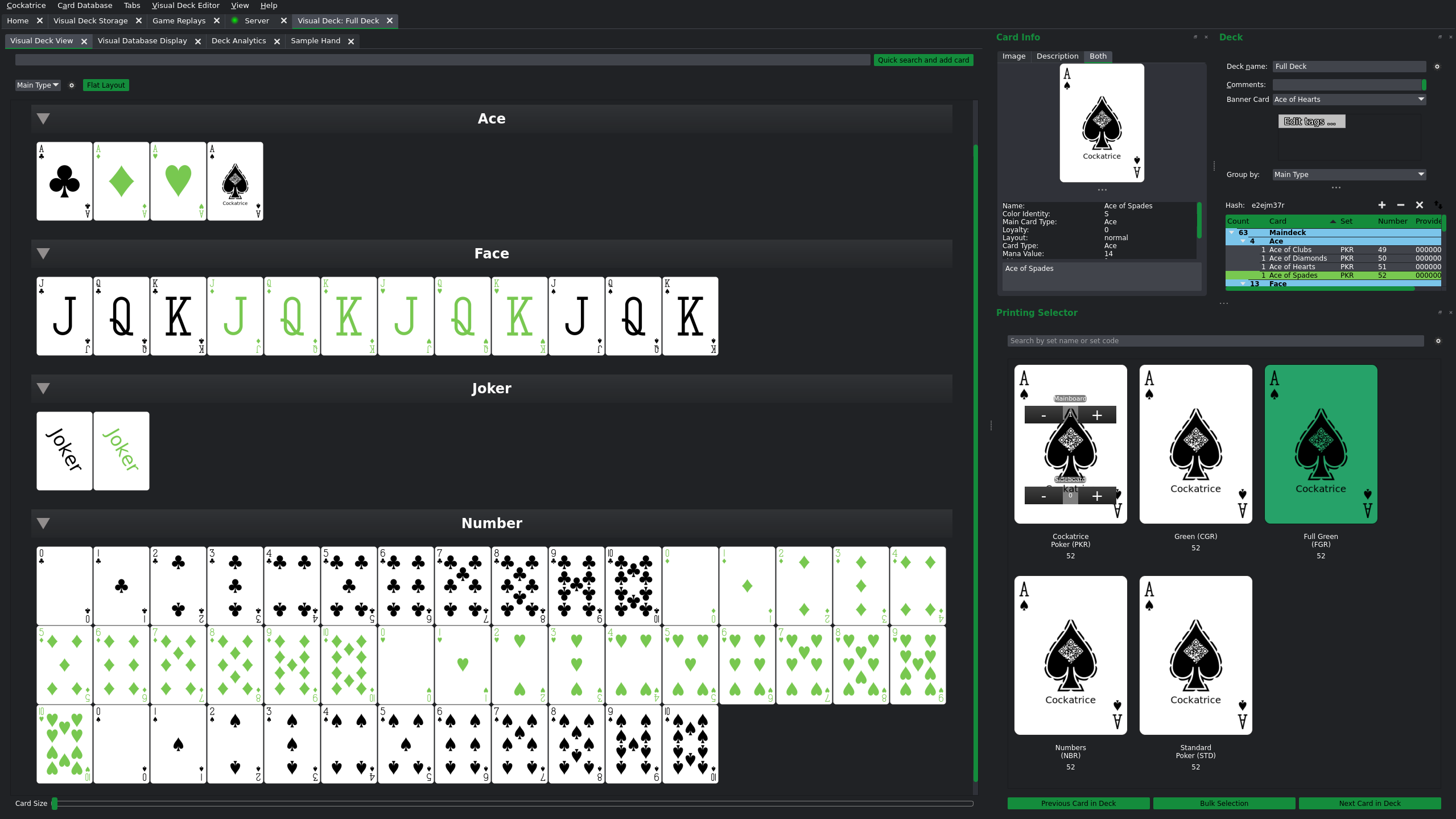
or in an "Overlap" layout, which overlaps cards on top of each other (leaving the top 20% of the card uncovered so names remain readable) and arranges them in stacks to save space and allow for an easy overview.
Additionally, it is possible to change how the cards in the deck list are grouped by selecting a different grouping method from the combo box, either in the top left of the "Visual Deck View" tab or above the list view in the deck dock widget.
Example - Cards grouped by suit/color:
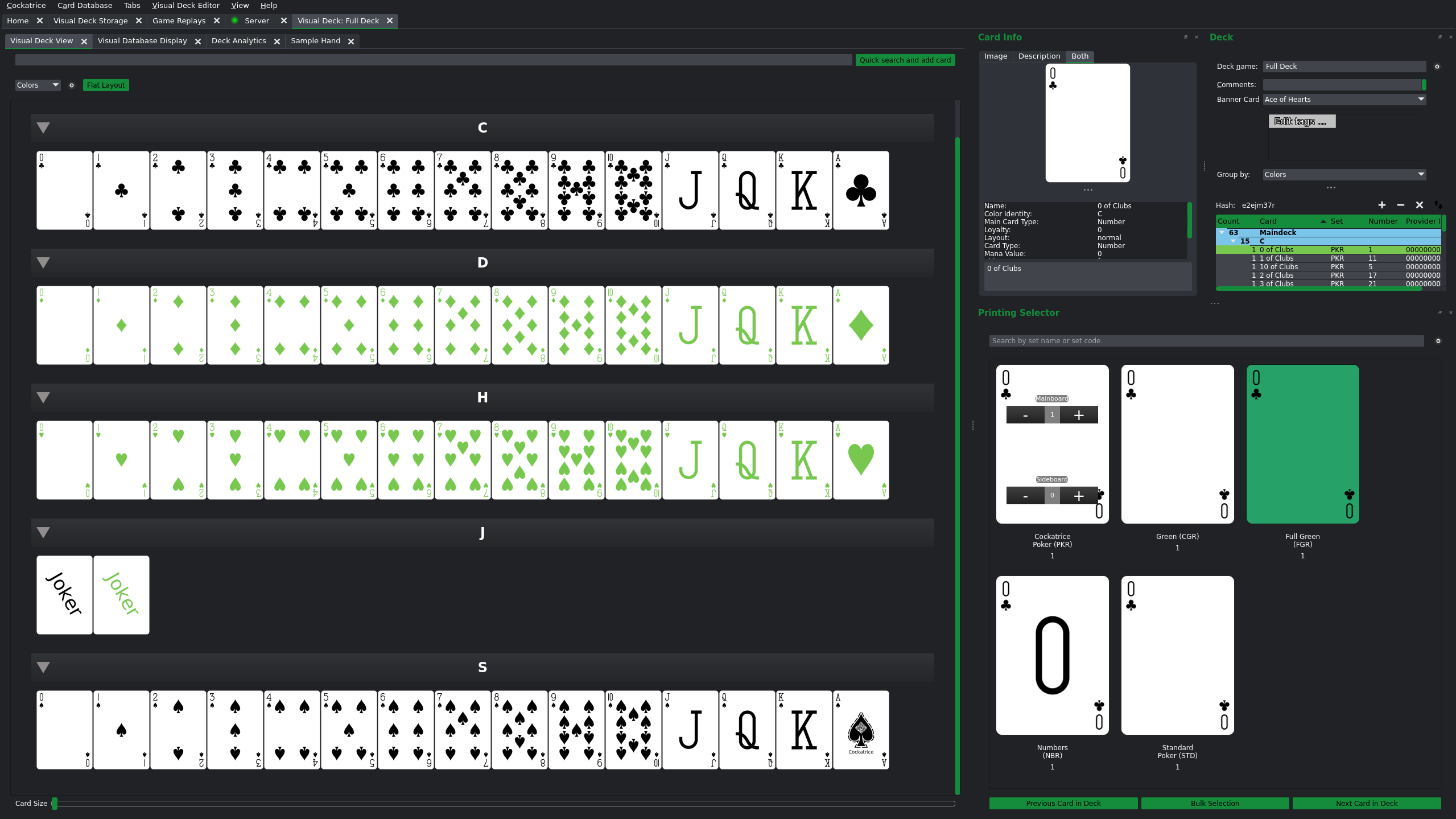
Furthermore, it is possible to change how the cards are sorted within the sub-group. This is done by clicking on the button with the cogwheel icon next to the combo box that adjusts grouping in the top left of the "Visual Deck View" tab. This presents a list of available sort criteria, which may be rearranged to change their priorities.
For more information on modifying the printings in a deck see Printing Selector
The visual deck editor offers a "Deck Analytics" tab, which displays information about:
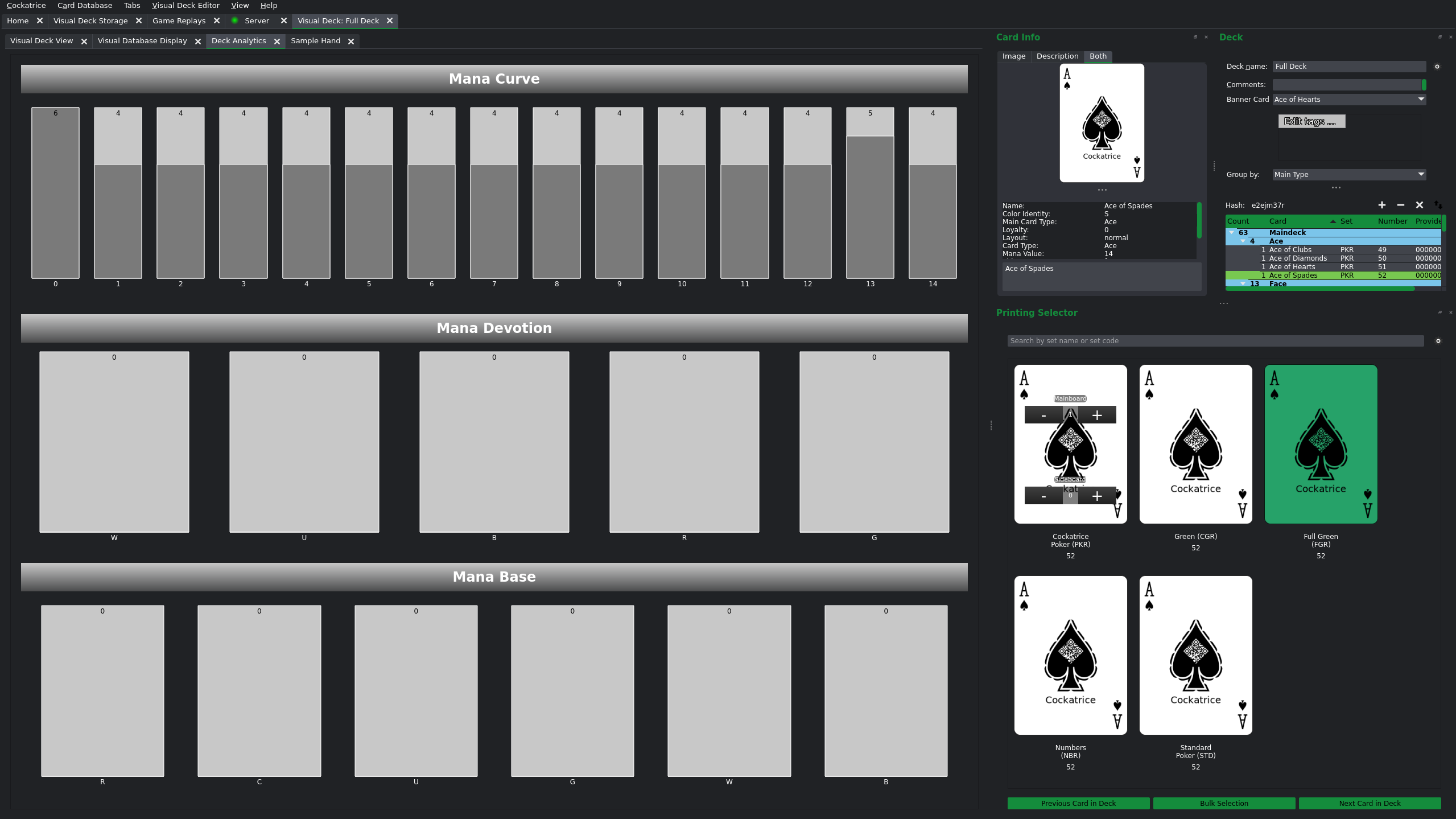
The visual deck editor offers a "Sample Hand" tab, which allows simulating drawing a configurable amount of cards from the deck, which reduces the need to launch a single player game for testing purposes.
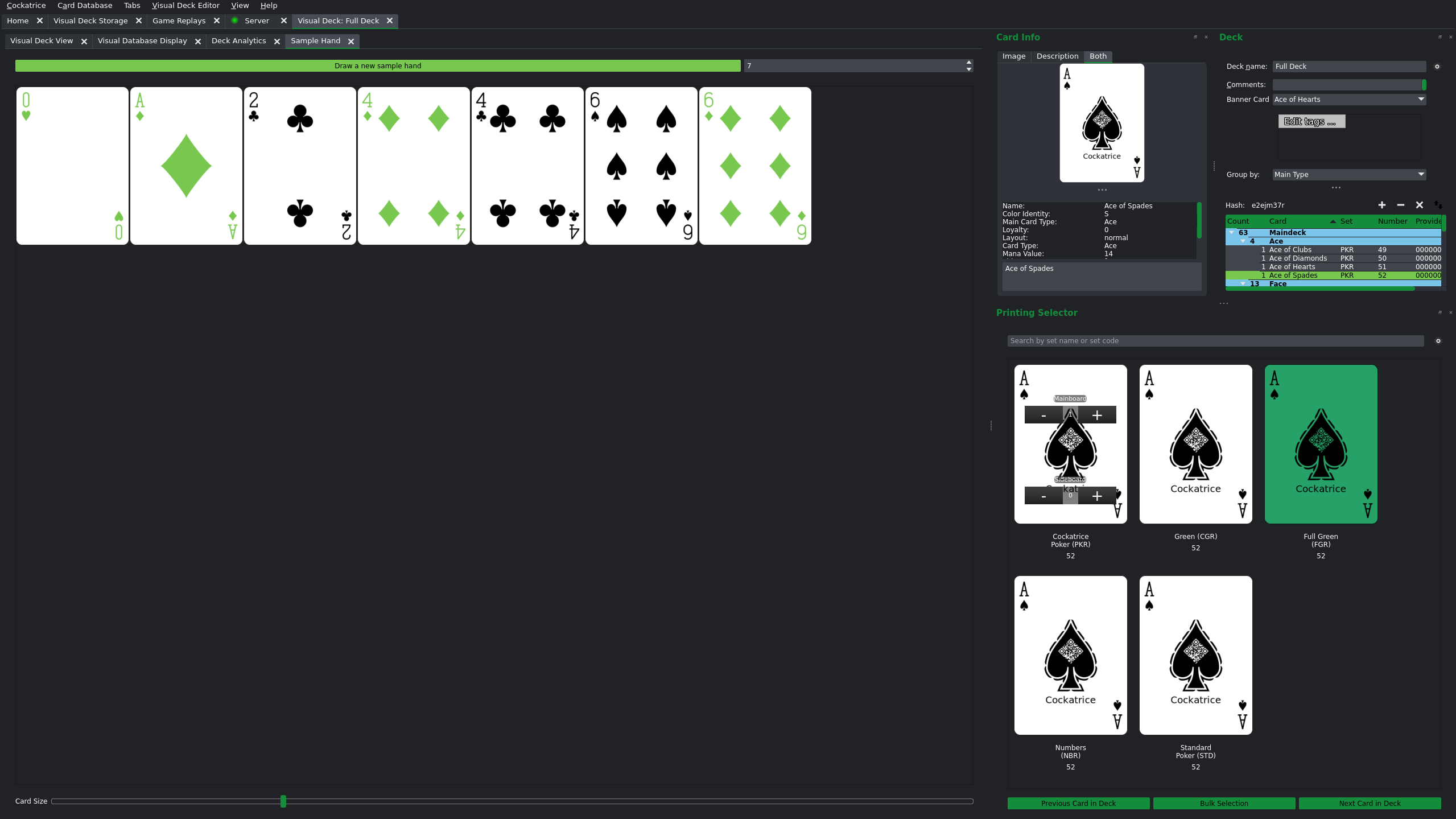
 1.18.0